Add Process
Attended
When the authorization type is "Attended - Floating License", we call it Attended.
The Laiye Automation Worker client of Attended has the functions of Process, Trigger, operation record, setting and other functions operated and controlled by the user.
Process
Process, including Commander Process and Group.
Process can view Commander Process, add Group, delete Group, query Process, view Process details, run settings, run Process, stop running and other operations.
Commander Process
The Commander Process does not need to be added manually. The Attended - Floating License worker can directly access the online Process of the Laiye RPA Commander, and also support the user to manually refresh the Process list.
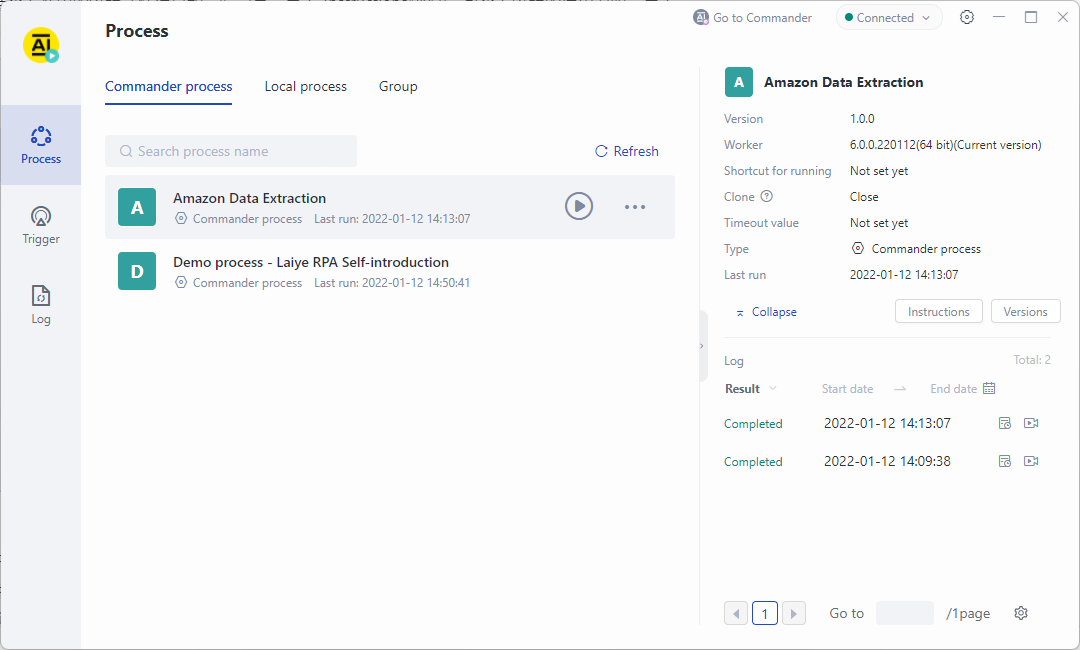
Matters needing attention:
The user can only access the online Process of the Laiye RPA Commander whose department the current account belongs to has permissions.
If the online Process of the Laiye RPA Commander is updated, the Commander Process on the Laiye Automation Worker will be automatically updated.
Add Group
A Group is used to orchestrate one or more existing Process.
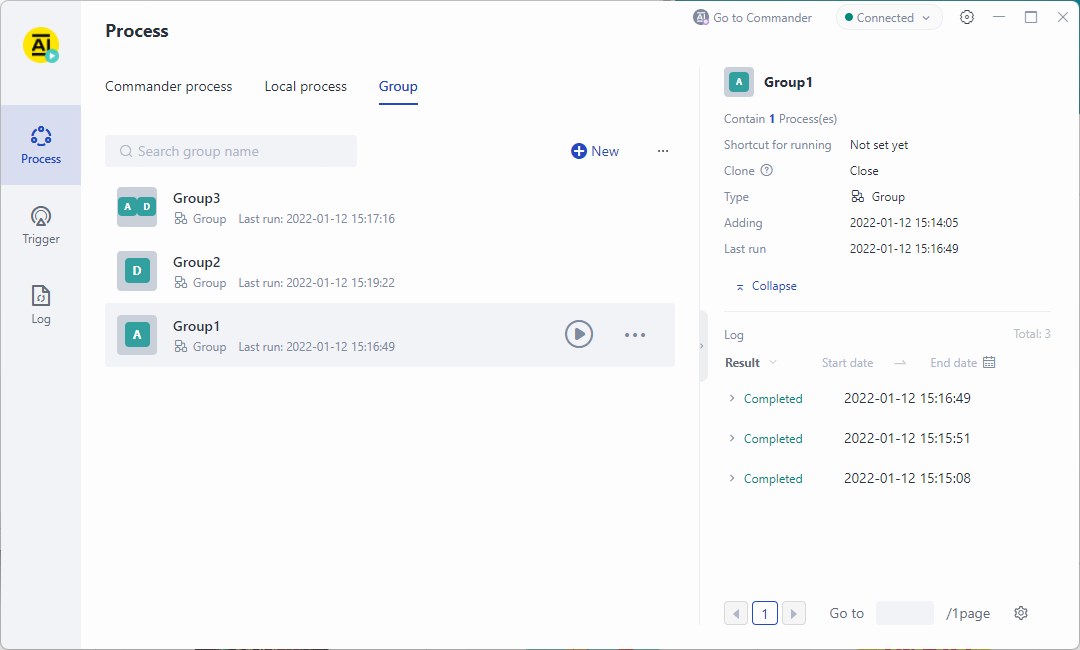
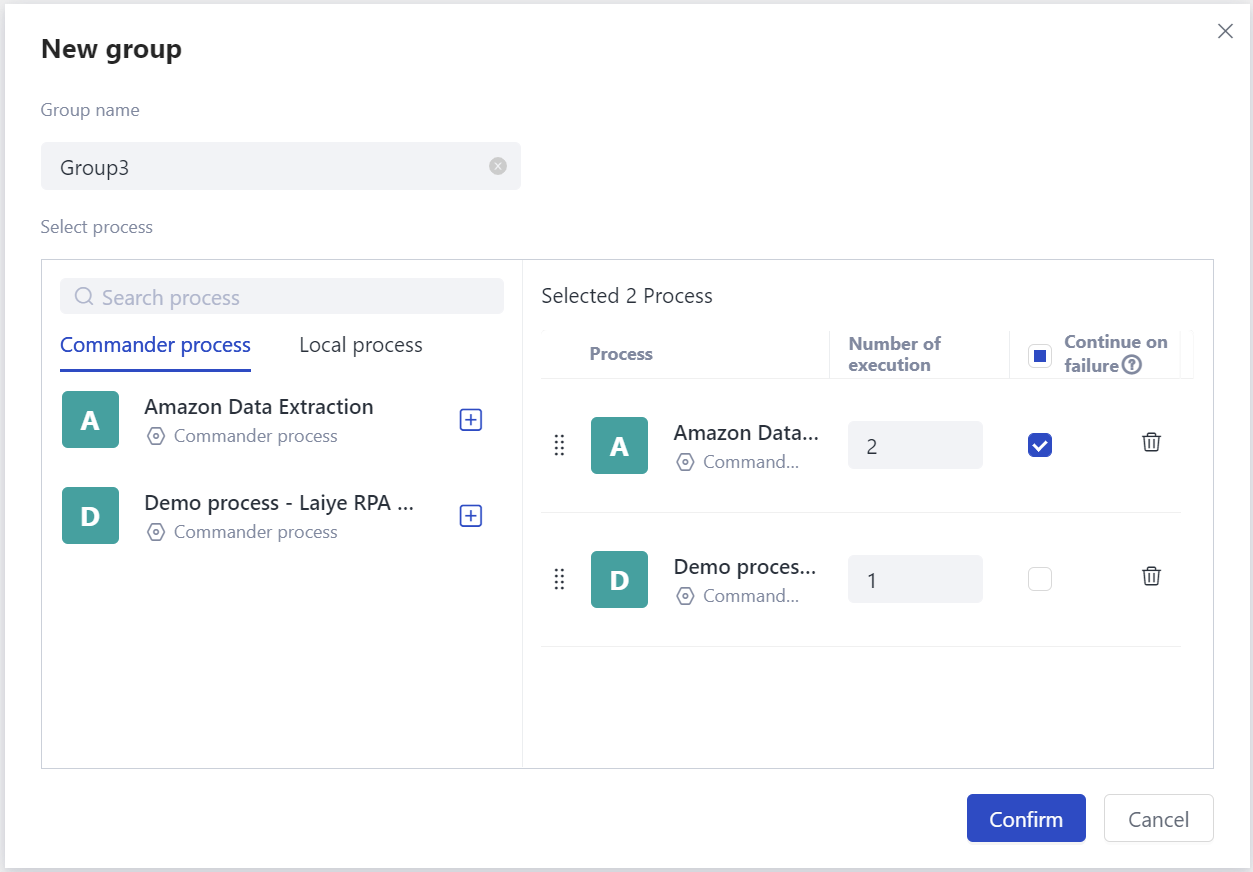
The operation of creating a new Group page is as follows.
Enter the name of the Group.
Select Process. Click the "+" add Icon on the left to select the Process of the Group as required.
Sort: hover over the move icon on the left side of the Process, and drag the Process up or down to finish sorting.
Execution times: set the execution times of each Process as required. The next Process will not be executed until the specified number of times has been executed.
Continue after failure: if this option is checked, the next Process will continue to run according to the number and order of orchestrations if the Process fails to run.
Delete: click the "delete" icon to remove the selected Process.
Create a new Group, as shown in the following example.
Delete Group
To delete the Group, click the "delete" icon, and the system will ask you whether you are sure to delete it.
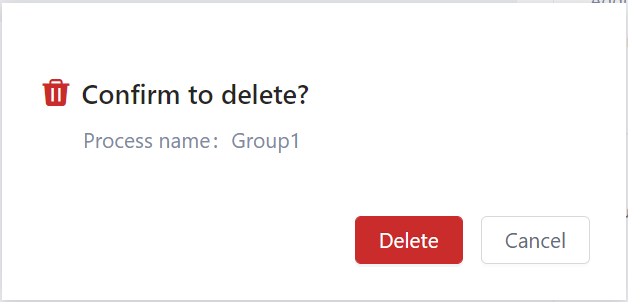
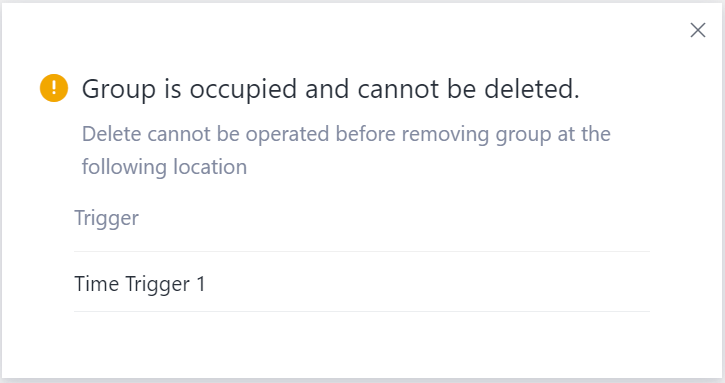
When you click the "delete" button, the system will detect. If the Group is used by the Trigger, it cannot be deleted. If no Trigger is using the current Group, it can be deleted.
Query Process
Support searching by Process name and Group name.