Login and logout
As a software product that needs to purchase a license, Laiye Automation Worker needs to be certified for product license.
After installing the Laiye Automation Worker client, select the authorization type and log in.
When the authorization type is "Attended - Node-locked License" and "Attended - Floating License", the user can control which Process the Laiye Automation Worker client runs and how to run it through the functional interface.
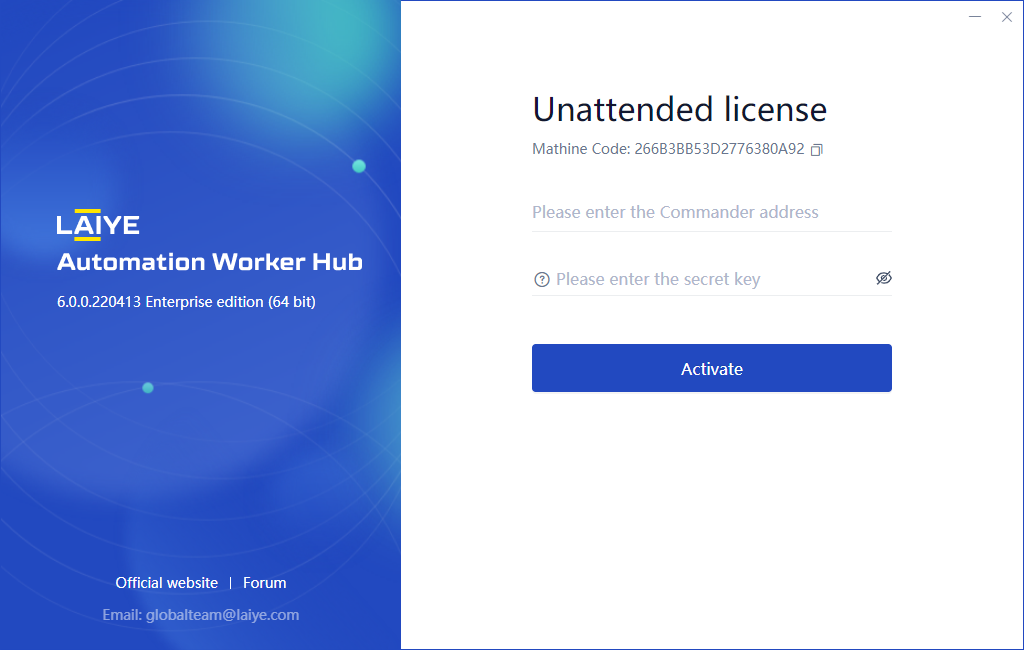
When the authorization type is "unattended - Floating License", users are not required to be on guard, and they can receive and run Task assigned by the Laiye RPA Commander.
The details are as follows.
Attended - Node-locked License
Obtain the activation code through the officially granted CDKEY, and enter the correct activation code to complete the authentication.
matters needing attention:
Precondition: you have purchased the Laiye Automation Worker "Attended - Node-locked License", and you have one of the unused cdkeys.
When the authorization type is "Attended - Node-locked License", the Laiye Automation Worker client runs offline and is not associated with the Laiye RPA Commander.
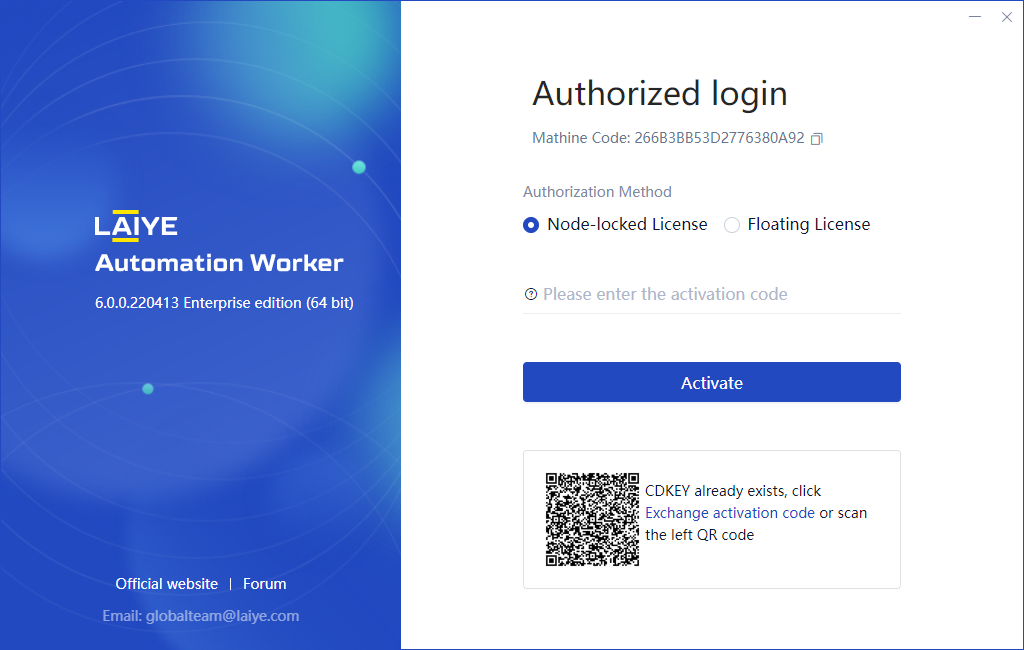
If your computer is not connected to the Internet, you can scan the QR code through your mobile phone. Similarly, after entering CDKEY, click the "get now" button to view the activation code.
(1) If the CDKEY is valid and has not expired, the page will prompt:
Your activation code is xxxxx-xxxxx-xxxxx-xxxxx-xxxxx-xxxxx-xxxxx
Please remember and properly manage your activation code.
(2) If the CDKEY has expired, the page will prompt:
CDKEY is expired ! (CDKEY has expired)
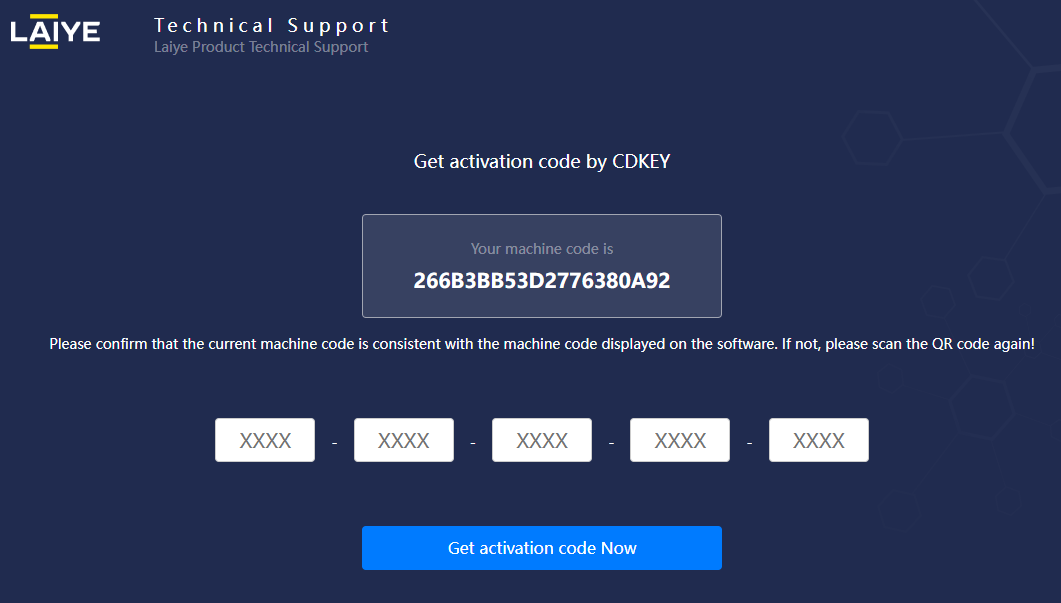
If your computer is connected to the Internet, you can click "exchange activation code" to jump to the "obtain activation code" page of product technical support, as shown in the figure below, and obtain the "activation code" by entering CDKEY.
Attended - Floating License
You can use "user center address, user name, password" for authentication.
matters needing attention:
Preconditions: give the user's role the permission of "login Floating License Laiye Automation Worker" through "Laiye RPA Commander > System Management > member roles > role settings", otherwise it cannot pass the authentication of "Attended - Floating License".
During authentication, if you receive the prompt message "the number of worker connections exceeds the authorization limit and cannot be connected", it means that the number of Laiye Automation Worker of "Attended - Floating License" currently online has reached the limit of such authorization.
After passing the authentication, the Laiye Automation Worker will automatically return the current version number, machine code, latest connection time, IP address and other information of the Laiye Automation Worker client to the Laiye RPA Commander.
If the user has edited the password, role or department of the current Attended - Floating License user through the Laiye RPA Commander, the Laiye Automation Worker will automatically return to the "authorized login" page, and please login again.
If "HTTP" or "HTTPS" is enabled for the user center address, you need to include the prefix "http: / /" or "HTTPS: / /" when entering the user center address.
When entering the user center address, please enter the content before the address "/".
Correct example: https://xxx.laiye.com
Examples of errors: https://xxx.laiye.com/identity/view/#/login
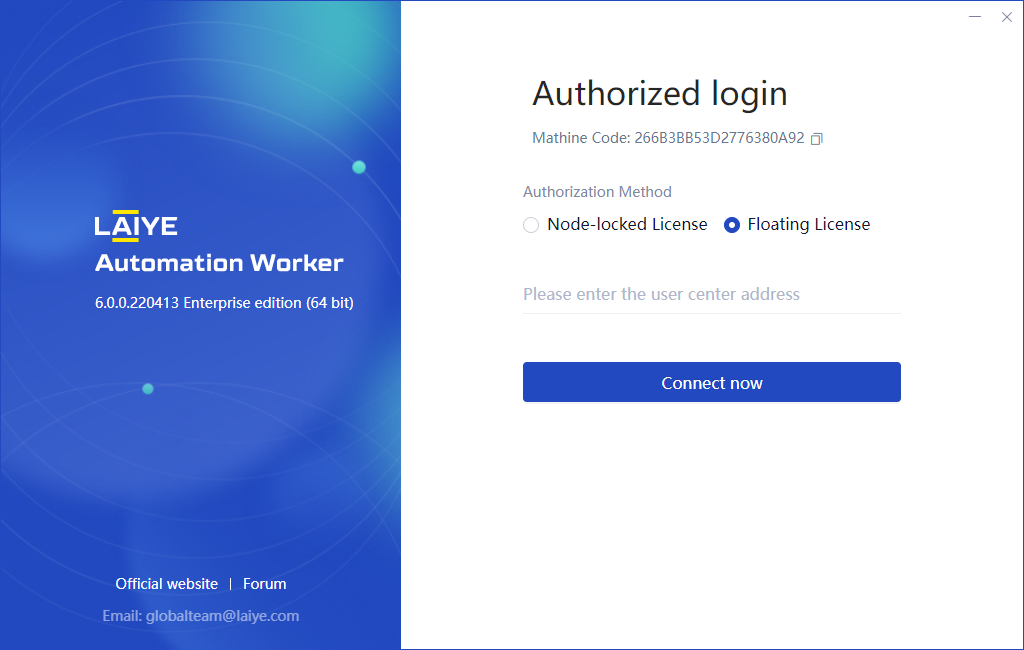
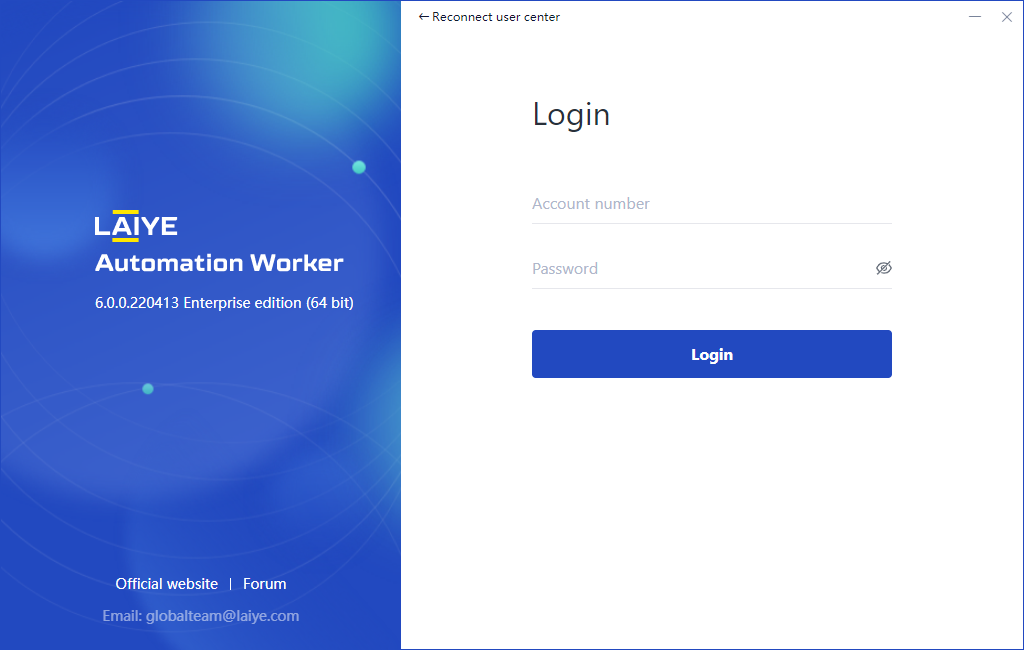
After connecting to the user center successfully, you can enter the user name and password to log in.
Unattended - Floating License
You can use "Laiye RPA Commander address, key" to authenticate.
matters needing attention:
Precondition: after successfully adding a Device through "Laiye RPA Commander > Device", view the Device Key and copy it; Then, through "Laiye RPA Commander > Laiye Automation Worker > unattended", create an unattended Laiye Automation Worker, bind the Device, and associate the user account and password of the windows system of the Device.
After passing the authentication, the unattended Laiye Automation Worker will automatically return the current version number, machine code, latest connection time, IP address and other information of the unattended Laiye Automation Worker client to the Laiye RPA Commander.
As mentioned above, it is the description of the authorized login mode and precautions of the Laiye Automation Worker.
After logging in through authorization, you will enter the main interface of the unattended Laiye RPA Worker Hub.
There are obvious differences between Attended and unattended main interface and function range.
In the following chapters, we will explain the functions and operations of "Attended Laiye Automation Worker" and "unattended Laiye Automation Worker" respectively.